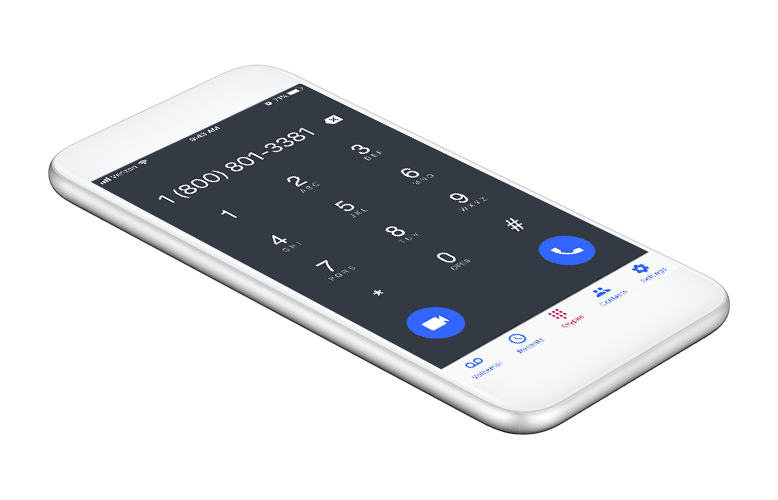
OnSIP comes with a free softphone application for mobile and desktop. You can use your free OnSIP SIP account with any standard SIP application. You can also register your SIP address on any SIP-based desk phone for free voice and video calling.

"Utilizing WebRTC allows for far greater flexibility than already available ...
OnSIP might have started something really big, possibly a new trend in how to expand your communications even more"
Matt Grech, Business Tech Journalist for GetVoIP
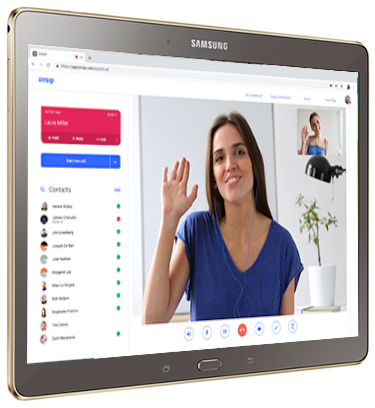
The OnSIP Free Plan is a 100% web-based voice, video, and messaging solution for teams. Users can use our free softphone app or register their free SIP address with any compatible device or application to make free voice and video calls. Also included:
If you’re looking to create a free SIP address, you can now get one by signing up for the OnSIP Free Plan. (We are no longer offering SIP addresses with the getonsip.com domain.) In fact, you can create up to 100 SIP addresses with your free OnSIP account on the onsip.com domain, or even customize your addresses using your own domain!


Integrate SIP-based voice and video into your applications for powerful HD communications on any device with our developer services. Best of all, it's all built on a robust, industry-leading SIP platform that handles all the scaling for you.
var ua = new SIP.UA();
ua.message(
  'john@example.onsip.com',
  'Hello, world!'
);

var session = ua.invite('john@example.com');
session.on('accepted', function () {
  this.bye();
});

Think of a SIP address like an email address, except for real-time communications instead of email messages. Like your email, you have an address (known as a SIP address), at which your friends and colleagues can reach you. A SIP address looks the same as an email address (john@acme.onsip.com, for example).
WebRTC is an open source project that enables web pages with real-time communications capabilities such as audio and video calling. We've used it to create a web-enabled softphone application for you to make and receive calls to / from other SIP addresses.
OnSIP has mobile applications that allow you to take your calls anywhere. We are built entirely using open standards, which means your SIP address is not limited to any kind of device. You can 'register' your SIP address to SIP desk phones, applications on your smartphones and tablets, and software phones on your personal computer. You can take your SIP address anywhere and have 'active registrations' on up to 10 different devices.:
'Registering' your SIP address is similar to logging into an email account via any email application. Your email account comes with an email address and a password (i.e. your email credentials), and you can login and use your email account from any application if you have your credentials.
Similarly, every SIP phone or application will request your SIP credentials in one form or another during setup. Your SIP credentials can be found by logging into the OnSIP app and selecting App Settings under your avatar in the top right corner. Simply enter your SIP credentials into the fields provided by any SIP application or phone, and your SIP address will be registered.
Visit our Knowledgebase for detailed instructions on how to register your SIP account with the most popular mobile apps, software phones, and VoIP desk phones.
If a device, browser, or application is actively registered with your SIP address, it means that it can make and receive calls. If you have multiple devices registered, when someone calls your SIP address, all registered devices will ring simultaneously.
If you have a GetOnSIP SIP address or sign up for the OnSIP Free Plan, you will not be able to dial phone numbers. Calling phone numbers with a SIP address requires a SIP-to-PSTN gateway service, which we offer for businesses on any of our paid plans.
We offer developer services for companies and developers interested in using our SIP platform for their own custom solutions. Please enter your information, and a member of our team will contact you to discuss your needs shortly.
Calls are secure, peer-to-peer communications if both parties are using the OnSIP app. For instance, if you communicate with someone via your OnSIP professional call link, the media (content) of your call will be encrypted by DTLS SRTP standards.